


UPS Firmware Update: When and How to Do It

UPSs are no longer just boxes with batteries and inverters; devices with their own processor, software, and often network connectivity. This internal software is called firmware. Firmware is the software that determines how the UPS detects a grid failure, when to switch to the battery, how to charge the battery, and what alarm it raises. Like any software, it can contain bugs, it is fixed over time with new versions, and it needs to be updated for vulnerabilities in networked devices.
In this article, we discuss what a UPS firmware update is, how it differs from network card software, when an update is necessary or unnecessary, preparation before an update, general steps and subsequent verifications. Article; It was prepared for IT managers, facility managers, technical service and purchasing units, and small business owners who monitor their own UPS. Since the details vary according to the manufacturer and model, the steps are explained as a general framework; the exact procedure should always be based on the device's release notes and user manual.
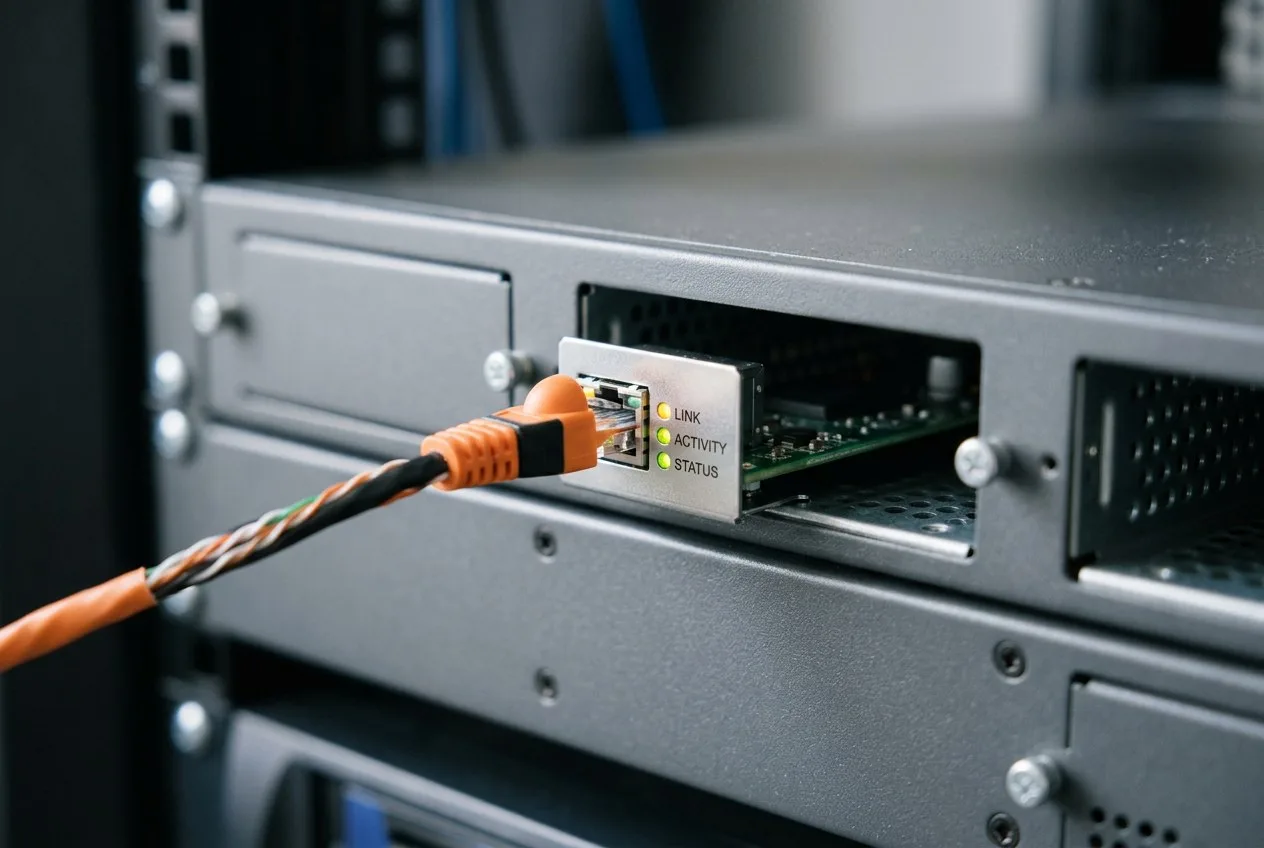
What is UPS firmware, where is it located?
Firmware is persistent software that runs embedded in a device's hardware. It's a common misconception to think that a UPS has only one software inside. In reality, the same device can have several independent software layers:
- UPS main control software: It is the software on the cards that manage the rectifier, inverter, static bypass and charging unit. It is the heart of power conversion. In large UPSs, the software of the power modules and the graphics card may also be separate.
- Network management board software: It runs on an SNMP/web card or a network module embedded in the device. The web interface, email alerts, SNMP, user accounts, and encryption settings are in this layer. This is often what users mean when they say "UPS software update."
- Monitoring and shutdown software: These are applications that run on a server or computer and shut down the operating system properly in case of a power outage. This is not a firmware, but normal software; but it should be considered together with UPS and card versions for compatibility. For details UPS remote monitoring and alarm management You can look at the article.
This distinction is also evident in the manufacturer's documentation: in order to update the UPS's own software, some models require the network card to be upgraded to a specific version first. In the manufacturer's example, some higher models require the card to be of a specific version or newer before switching to the UPS software; it is also recommended to check that there are no active alarms before starting the update. This shows that the order and prerequisites are important on a model-by-model basis.
Why update UPS software?
The common goal of new versions is to increase the device's resilience to issues encountered in the field. Updates typically fall under one of the following headings:
- Bug fix: Behavioral errors such as false alarms, incorrect load percentage readings, incorrect results in battery testing, synchronization problems with a specific generator, or restarting under certain conditions are eliminated.
- Compatibility: Compatible with new battery type, new power module, new network card, parallel operation or new monitoring software version.
- Security patch: Vulnerabilities in devices that can be accessed over the network are closed. This topic has been the most important reason in recent years (discussed separately below).
- New feature and improvement: Improvements may come in areas such as reporting, communication protocol support, energy-saving modes or battery management.
Not every update is necessary for everyone. If the issue fixed in the release notes does not concern your model, hardware revision, or feature you are using, there may not be an urgent need. The criterion here is not "is a new version released?", but "does this version reduce my risk?".
Why is firmware update important for security?
Networked UPSs are located on the same network where servers, switches, and other IT devices are located. The U.S. Cybersecurity and Infrastructure Security Agency (CISA) and the U.S. Department of Energy have warned organizations that internet-facing UPSs are often compromised through unchanged default usernames and passwords. This warning cited the removal of administrative interfaces from the internet and checking default credentials as priority steps.
At the same time, three vulnerabilities in a widely used UPS family were announced under the name "TLStorm". According to the researchers, one of them (CVE-2022-0715) was the problem of update files not being securely digitally signed; this could allow malicious software to be installed via a network, USB stick, etc. The manufacturer has released patches for the relevant versions. The lesson here is not about the brand, but about a general principle: if the network card and UPS software are not kept up to date, the device leaves the attack surface open.
Therefore, the security-focused update approach can be summarized as follows:
- Do not open the management interface directly to the internet; use a separate management network (VLAN) or secure access method.
- Change default passwords on initial setup, turn off unused protocols (e.g., older SNMP versions, FTP, Telnet).
- Follow the manufacturer's security bulletins and national/international warnings; if your version is on the affected list, schedule the update first.
- Obtain the update file only from the manufacturer's official channel and perform integrity (hash/signature) verification if possible.
NIST's enterprise patch management guide (SP 800-40 Rev. 4) also treats patching as a "preventive maintenance" and risk management activity. The guide emphasizes that patching every vulnerability immediately is not the only option, and that the risk can be accepted, mitigated, or offset by other measures. This perspective is important for power systems; because an update failure in the UPS can affect the critical load.
When to update, when to wait?
The following table provides a practical framework for making a decision. The recommendations in the table are general guidance; the final decision should be made by manufacturer release notes and service evaluation.
| Status | Recommended approach | Reason |
|---|---|---|
| Manufacturer reported vulnerability affecting your version | Plan with priority; network card first, UPS software if needed | On a networked device, the risk increases over time |
| The device frequently gives unexplained alarms | Refer to the release notes and alarm logs first; update if there are any relevant fixes | The problem may be software-related; however, hardware failure should also be ruled out |
| New battery, new module or new network card will be installed | Do it after or before the update according to the compatibility table | Version incompatibility can cause communication and charging problems |
| The device is problem-free, there is no article in the release note that concerns you | Take your time; review at annual maintenance | Unnecessary intervention carries its own risk |
| Busy period, exam, pre-holiday, season opening, critical production | Defer to the planned maintenance window | The unexpected problem has the highest impact |
| UPS is faulty, battery or bypass is working, active alarm | Fix the fault first, then update | An update while there is an alarm may mask the problem or fail |
| Model with end of support at the manufacturer | Network isolation, password and protocol hardening; refresh plan | New version may not come |
A rule of thumb: It is wrong to neglect the working system as "don't touch it before it breaks" or to rush to "install every new version immediately". The right approach is a planned and recorded update policy. This policy can be linked to an annual or semi-annual periodic maintenance visit in most businesses. For maintenance intervals UPS maintenance frequency and maintenance schedule can be a guide.
Preparation before updating: What to do?
Most of the problems in firmware updates are not caused by the update moment, but by lack of preparation. The NIST guide also describes the patching process; It deals with it in steps such as inventory, prioritization, obtaining the file and verifying its integrity, testing and implementation. For UPS, we can adapt this as follows:
- Take inventory. For each UPS, the make/model, serial number, hardware revision, current UPS software version, network card model and version, and the version of the monitoring software used should be recorded. This information is useful when it is necessary to check version compatibility and revert later.
- Read the release notes. See which bug has been fixed, known issues, prerequisites (for example, network card update first), and how output will be affected during the update.
- Get the right file. The same manufacturer has separate files for different UPS families. Uploading a file prepared for the wrong family can lead to update failure and loss of device communication. Download the file only from the manufacturer's official page; if possible, verify if the manufacturer provides integrity information.
- Back up the existing configuration. IP address, SNMP settings, email/alarm notifications, shutdown thresholds, user accounts, and scheduled tests should be backed up or at least recorded with a screenshot.
- Check the UPS status. If there is an active alarm, battery warning, overload or bypass situation, these should be evaluated first. The update should be done on a "well-functioning" system. For alarm interpretation UPS alarm and error codes The article is useful.
- Make a backup energy plan. If the UPS needs to be bypassed during the update, the load remains directly connected to the grid. If there is a grid outage during this time, there is no protection. For bypass logic Static and maintenance bypass Check out the article.
- Make a return and communication plan. If the update fails, determine in advance who to call, which backup to switch to, and how to notify the relevant units.
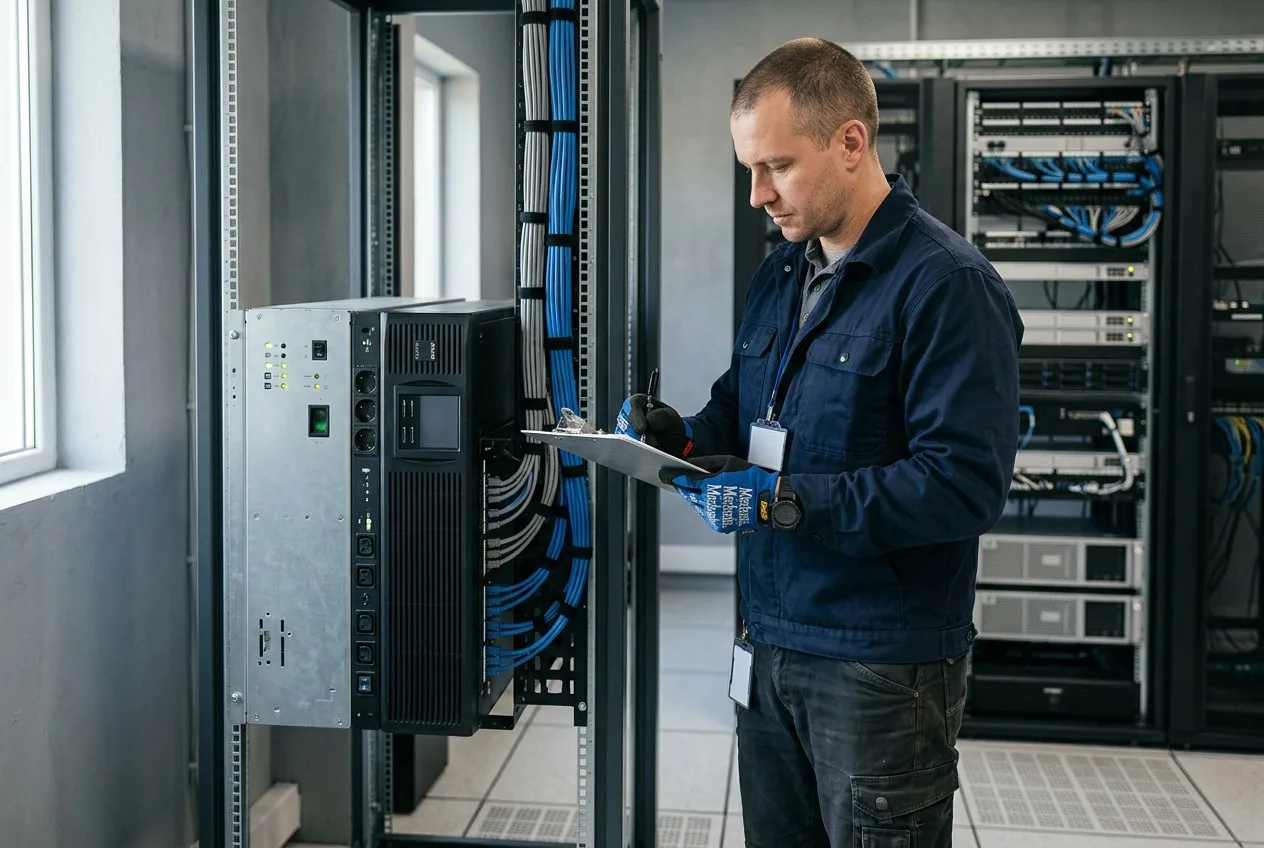
How to update UPS firmware step by step?
The following flow is a general framework. The update method varies by device: some models use the manufacturer's update wizard, others use the network card's web interface, FTP/SCP transfer, command line, or USB stick. Do not deviate from the manufacturer's manual.
Safety note: Network card update is a process that can be carried out by IT personnel if the manufacturer's documentation is followed. Updating the main control software of the UPS directly affects the power electronics; it may require operations such as closing the outlet, bypassing, or opening the cover of the device. These stages should be carried out by authorized electrical personnel and service. For the occupational safety framework Occupational safety in UPS and battery work See the article.
1. Determine the maintenance window
Put the update at the time when the workload is at its lowest. Don't just do the calculation based on the "file upload time"; include the preparation, restarting, reappearing on the network, and verification times.
2. Backup configuration and save current status
Note the version numbers, load percentage, battery status, input-output voltage, and event log. This "before" picture is important for post-update comparison.
3. Provide prerequisites
If necessary, update the network card first and then the UPS software. In the case of the manufacturer, certain models require the card to be upgraded to a sufficient version. Reverse the order may lead to a failed update or communication problems.
4. Upload the file and don't interrupt the process
Do not disconnect from the network, remove the card, turn off the UPS, or put the computer to sleep during the update. The manufacturer's guidelines state that disrupting the process before the update is complete will cause the update to fail. If you receive an error in file transfer, there may be alternative transfer methods recommended by the manufacturer (e.g., different protocol or browser); however, do not follow trial and error, but refer to the relevant release note.
5. Wait to restart
When the network card restarts, it will be unreachable for a while. As stated in the manufacturer community, the card's own reboot does not affect the UPS output under typical conditions; however, there may be exceptions for devices that are in error status or have communication problems. Therefore, at critical load, consider this as information confirmed by the release note, not as an assumption.
6. Verify
When the update is complete, read the new version number, look for errors in the event log, and check the "Post-update validation" section below.
Maintenance window and duration calculation: Example scenario
When there are multiple UPSs, the total duration grows rapidly. The following example shows how scheduling can be done. Times are assumptions; actual values vary by device and network conditions.
Assumptions: 12 network cards will be updated; 10 minutes are allocated per card for file upload and restart, and 10 minutes for configuration backup and verification. The first unit is being piloted and its results are monitored 24 hours a day.
| Step | Account | Conclusion |
|---|---|---|
| Time per card | 10 min update + 10 min verification | 20 min |
| Pilot unit | 1 × 20 min, followed by 24 hours of observation | 20 min + monitoring |
| Remaining 11 units (single person) | 11 × 20 min = 220 min | approx. 3.7 hours |
| Remaining 11 units (two people) | 220 min ÷ 2 = 110 min | approx. 1.8 hours |
| Buffer time (25%) | 110 min × 1.25 | approx. 2.3 hours |
In this example, only the pilot unit is built on the first day; if there are no problems the next day, the remaining 11 units are completed in a window of approximately 2.5 hours. The gradual progression is in line with the logic of "try in a small group first, then expand" recommended by the NIST guide. This approach also works well in multi-branch structures; for branch-based maintenance management UPS maintenance management in multi-branch businesses You can look at the article.
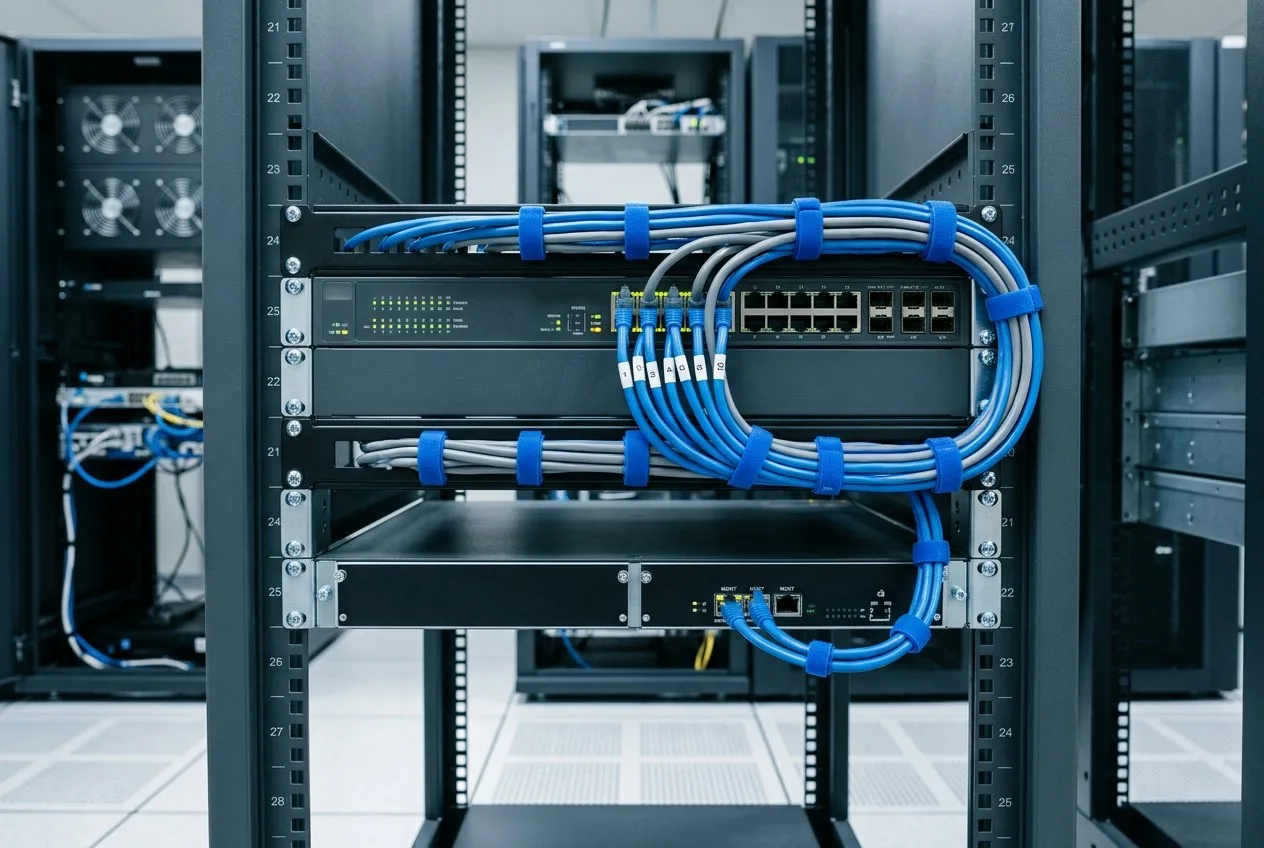
Is the load retained during the update?
This is the most frequently asked question and should be answered with caution as the answer is "on a case-by-case basis":
- Network card update: The card is a module independent of power conversion. During the update, the card restarts, monitoring and warning are temporarily interrupted; however, the UPS output is expected to continue. However, note that if there is a power outage during this time, the servers may not receive the automatic shutdown command. For the automatic shutdown schedule Automatic shutdown of servers in the event of a power outage Check out the article.
- UPS master software update: Some models continue to maintain the output during the update, others temporarily bypass the output or request it to be turned off. This information is included in the release notes. If you are unsure, do not update without passing the critical load to the network or other source.
- Parallel and modular systems: The software version of each unit must be compatible. Most of the time, units are updated one by one and in a specific order. In these systems, the authorized service should schedule the update.
Post-update validation: What to check
It is not enough for the update to give a "completed" message. The table below summarizes the points to look at next.
| Control | How to take care of it? | Symptom of trouble |
|---|---|---|
| Version number | Network card interface or "about" information on the screen | Old version appears, update incomplete |
| Operating mode | Normal (online) mode, not in bypass | Device in bypass or unexpected mode |
| Alarm and event logging | Records after the update time | New alarm or communication error |
| Voltage, load and frequency | Comparison with pre-update registration | Abnormal output voltage or load reading |
| Network and monitoring | IP, SNMP, monitoring software connection, email/trap test | The device does not appear in the monitoring system or receives an alert |
| Shutdown thresholds | Server shutdown time and remaining battery settings | Settings returned to default |
| Security settings | Password, closed protocols, access restrictions | Old protocols reopened |
| Battery information | State of charge, battery temperature and test result | Battery information cannot be read or charging behavior has changed |
If possible, a short battery transit test should be carried out at an appropriate time and with an assessment of the risk of the load. For the method and risks of the test Commissioning after UPS repair article; post-update verification is also based on the principle of "check conditions first, verify behavior later". Process the installed versions and actions taken in the maintenance report; for how the report content should be How to read a UPS maintenance report You can take a look at the article.
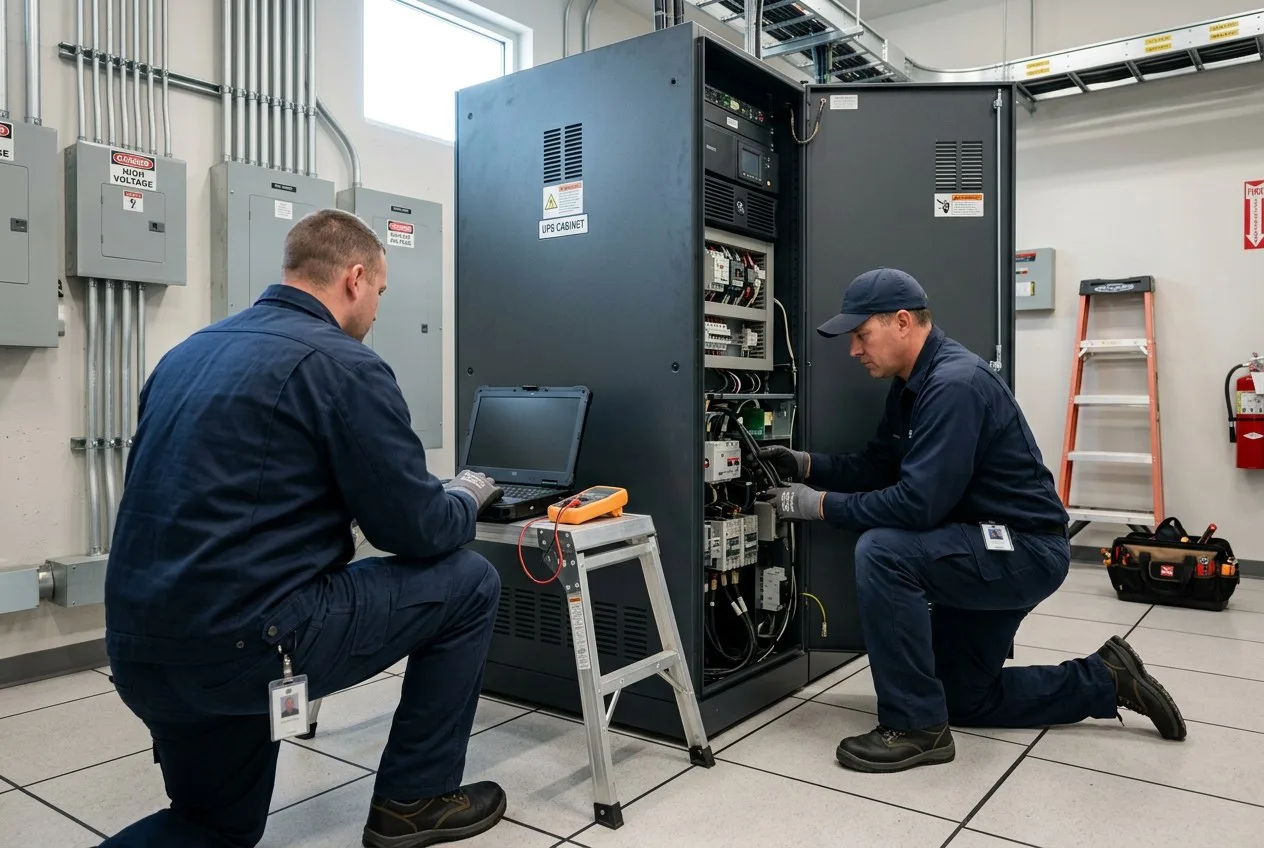
Common mistakes and solutions
| Error/problem | Possible cause | What should be done? |
|---|---|---|
| Update won't start or gives an error | Incorrect file, incompatible card/UPS version, lack of prerequisites | confirm model and version; refer to the manufacturer's compatibility information; contact service if necessary |
| Transfer interrupted | Network drop, browser or protocol issue, disconnection during the process | Try again with a stable connection and the manufacturer's recommended method; do not forcibly turn off the device |
| Device does not appear on the network after update | Card did not restart, IP setting changed, some protocols turned off by default | Wait a few minutes; then check the settings with local access |
| Monitoring software shows "loss of communication" | Network card and UPS versions are incompatible, software is outdated | Compare card and UPS versions with manufacturer compatibility information |
| Settings reset | Configuration not preserved in version migration | Restore from a previously taken backup and revisit security settings |
| Updated UPS in alarm state, problem persists | The problem is hardware, not software | Don't think updating is the solution; get the fault diagnosed |
| Multiple UPSs updated at the same time | Not piloted, all devices exposed to the same risk | Apply gradually; do not move from one unit to another without verification |
Specifically avoid the following practices: downloading firmware from sites of unknown origin, trying files of different models as "similar", starting the update at a high risk of power failure, proceeding without backup, and finishing the update without keeping configuration logs.
Situations that cannot solve the update
A firmware update isn't the answer to every problem. The problem is most likely with the hardware, not the software, if:
- If the UPS lasts for a very short time despite switching to the battery; this is usually related to battery life. For review When to replace a UPS battery See the article.
- If there are signs of fan, capacitor, or power board failure; in these cases, a software update will not fix the problem but rather create additional risk in a faulty device.
- In systems that are turned off for a long time, have broken battery poles or do not receive a charge, the hardware status should be checked first. In this regard recommissioning of UPS and batteries that have been switched off for a long time The article guides the way.
- In systems with lithium batteries, the communication between the battery management system (BMS) and the UPS may be version-dependent. In such systems, the compatibility information of the battery manufacturer should also be checked before the update; for different controls lithium battery UPS maintenance See the article.
How to create an update policy
Instead of a one-time update, it's more valuable to take a sustainable approach. A small policy can include:
- Inventory: Model, serial number, version and location information of all UPS and network cards are kept in a single list.
- Tracking: Manufacturer security bulletins and release notes are checked periodically (for example, every six months); you can request this information from your service provider.
- Priority: Devices that are vulnerable to security and open to the internet or wide networks are prioritized; isolated devices that work smoothly are left for periodic maintenance visits.
- Test and pilot: One device first; if there is no problem, the others.
- Registration: Each update is recorded in the maintenance report with the date, old/new version, person who applied it and the result.
- Exception management: Compensatory measures such as network isolation are written down for devices that cannot be updated (support has expired, delayed due to critical load).
This framework makes your maintenance approach planned, not reactive. The difference in cost and risk of unplanned intervention Emergency room or planned maintenance You can find it in more detail in the article.
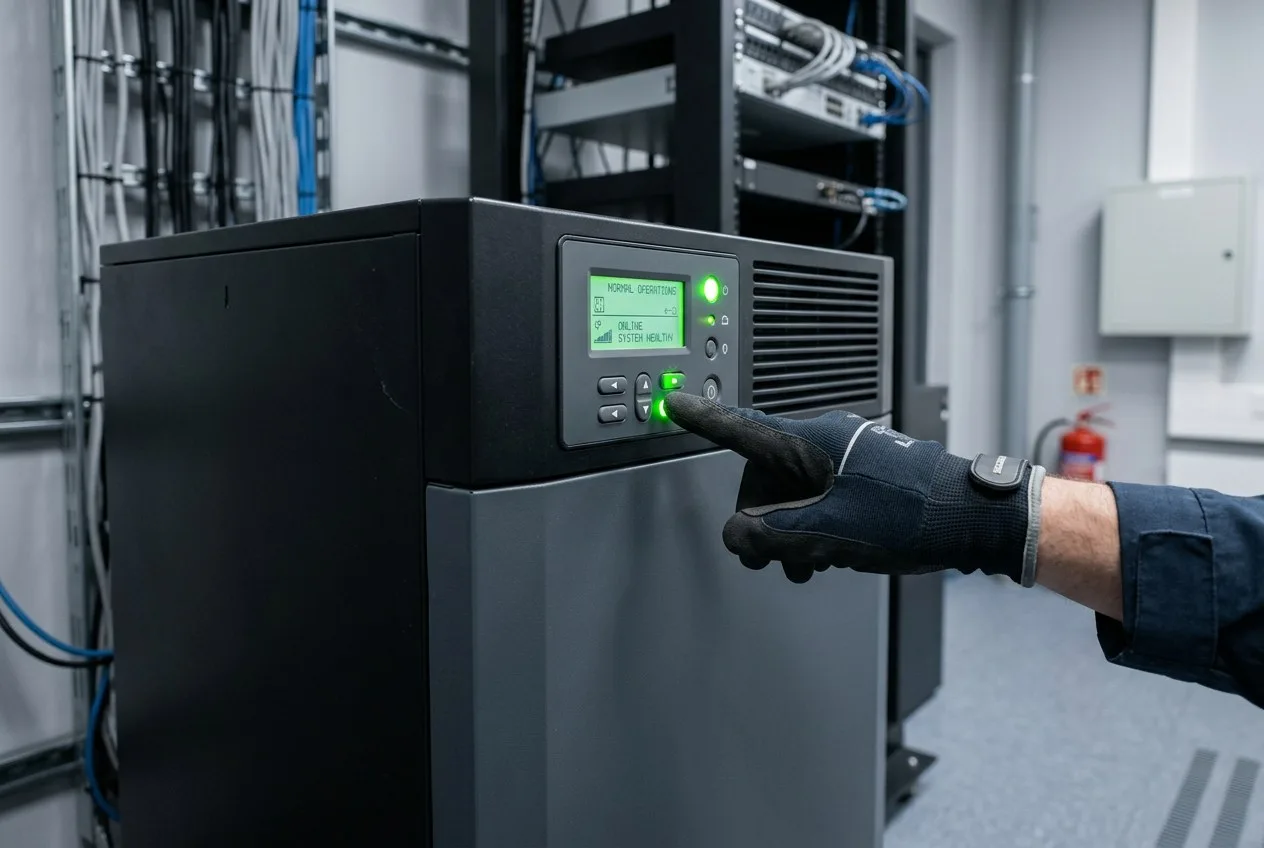
Firmware in solar and hybrid systems
The same logic applies to energy devices other than UPS. Hybrid inverters, charge controllers and battery management systems also have software; new versions can affect areas such as battery communication, charging profile and error codes. For these devices, too, the manufacturer's notes, compatibility information and the current setting backup should be consulted first. For general periodic checks of the system Periodic Maintenance Checklist for Solar Energy Systems provides a framework for you to add the update steps to the maintenance calendar.
Update or renewal?
If your device is no longer being upgraded or security fixes are not provided, the additional cost and risk of maintaining the existing UPS should be evaluated. Refurbishing the network card (if possible) is often a more economical first step; refurbishing the entire device should be considered alongside the lifespan of other components such as the battery, capacitor, and fan. The first considerations for this decision are:
- Is the device feeding the critical load or is it a single computer?
- Does the manufacturer still release security updates, are there any spare parts?
- Is the device exposed to the network, or is it only being monitored locally?
- Can the card and device be renewed separately?
Among our articles that deal with this subject in detail UPS lifespan and life-determining components by When to renew old UPS are located.

Professional support for UPS firmware update
Network card updates are relatively low-risk operations with the right file and preparation; however, a wrong step in the main software of the UPS, parallel and modular systems, lithium battery communication or devices under critical load can lead to service interruption. Bempower; It provides discovery, installation, periodic maintenance and technical service for all brands of UPS, battery packs and inverters in Istanbul and surrounding provinces. If you want to inventory the software versions of your devices, evaluate whether an update is needed or have the update done during a planned maintenance window from the contact page You can contact us.
- Schneider Electric APC Easy UPS Online (ICSA-22-347-02) — CISA, 2022. https://www.cisa.gov/news-events/ics-advisories/icsa-22-347-02
- Guide to Enterprise Patch Management Planning: Preventive Maintenance for Technology (NIST SP 800-40r4) — NIST, 2022. https://nvlpubs.nist.gov/nistpubs/SpecialPublications/NIST.SP.800-40r4.pdf
- NIST Released 2 Enterprise Patch Management SPs — NIST CSRC, 2022. https://csrc.nist.gov/news/2022/nist-released-2-enterprise-patch-management-sps
- Widely used UPS devices can be hijacked and destroyed remotely — Help Net Security, 2022. https://www.helpnetsecurity.com/2022/03/08/ups-devices-vulnerabilities/
- US Government Warns of Attacks Targeting UPS Devices — SecurityWeek, 2022. https://www.securityweek.com/us-government-warns-attacks-targeting-ups-devices/
Resources
